PRACTICAL AI GUIDE
AI Business Card Design Prompts for Print-Ready Artwork
AI business card design prompts can produce an attractive concept in seconds. Printing it successfully requires a different kind of instruction: exact dimensions, bleed, safe area, resolution, accurate content and an honest check of what the design tool can actually export.
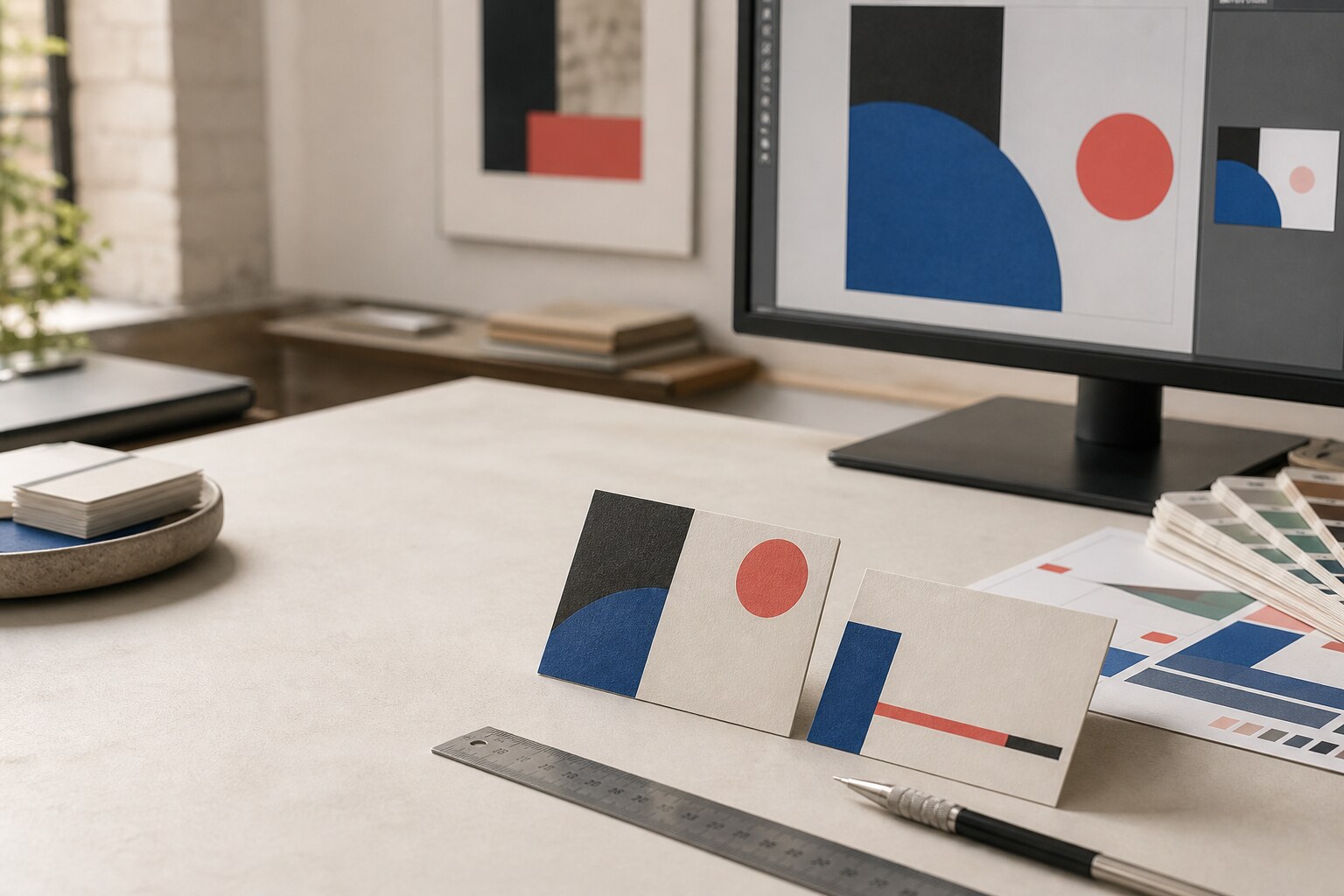
A persuasive preview is only the beginning. The supplied file still has to survive production.
FINAL SIZE
Agree the exact cut size before asking AI to compose the card.
SAFE AREA
Keep essential text and logos at least 3 mm inside every cut edge.
BLEED
Extend backgrounds and edge-to-edge images 1.5 mm beyond every cut edge.
THE PRINTER'S VIEW
How AI business card design prompts become press-ready files.
We increasingly receive AI-generated business-card designs. Many look convincing on screen but arrive at the wrong size, without bleed, with tiny type, invented details or insufficient resolution. The problem is rarely the idea. It is the missing production brief.
An AI image generator may not understand millimetres, colour spaces or editable artwork in the way a page-layout application does. A good prompt should therefore define the requirements and require the tool to state when it cannot meet them.
THE HONESTY RULE
If the tool cannot guarantee the dimensions, resolution or requested export, the result is a design concept—not print-ready artwork.
THE 85 × 55 MM EXAMPLE
Business card bleed, trim and one chosen safety margin.
Bleed extends 1.5 mm outside each cut edge. Keep essential content at least 3 mm inside the trim—or choose a 5 mm margin instead when the design allows for a calmer, safer layout.
| Specification | Result |
|---|---|
| Artwork with 1.5 mm bleed | 88 × 58 mm |
| Finished card | 85 × 55 mm |
| Standard 3 mm safety margin | 79 × 49 mm |
| Safer 5 mm safety margin | 75 × 45 mm |
| Raster artwork at 300 ppi | About 1,039 × 685 px |
Choose one safety margin. The 5 mm option replaces the 3 mm margin; the two are not added together.
COPY, COMPLETE, PROMPT
A print-ready business card prompt.
Replace the items in braces with your real information. Do not ask an image model to invent contact details, redraw a logo or create a functioning QR code.
Ask for a preview first. Check the words and hierarchy before requesting the largest available export.
FULL-COLOUR BUSINESS-CARD PROMPT
Create a front-and-back business-card design using these exact requirements.

FINAL CUT SIZE: 85 × 55 mm
DOCUMENT SIZE: 88 × 58 mm
BLEED: 1.5 mm beyond every cut edge
SAFE AREA: Keep all essential text and logos at least 3 mm inside every cut edge
RESOLUTION: 300 ppi at the 88 × 58 mm document size
PRINTING: Full-colour printing
COLOUR MODE: Use CMYK if supported. If the output is RGB, identify it as RGB and expect conversion before print.

Use this exact supplied content:
NAME: {EXACT NAME}
ROLE: {EXACT ROLE}
TELEPHONE: {EXACT NUMBER}
EMAIL: {EXACT EMAIL}
WEBSITE: {EXACT URL}

LOGO: Use the supplied logo unchanged. Do not redraw or reinterpret it.
QR CODE: Reserve a blank placeholder of the requested physical size. Do not generate a QR code.

Do not place cutting lines, safety guides, measurement labels or bleed guides inside the artwork.
Do not invent words, symbols, contact details or logos.
Return the front and back separately.

If you cannot guarantee the requested physical dimensions, resolution or export format, say so clearly and describe the result as a design concept rather than print-ready artwork.
KEEP THE SPECIFICATION, CHANGE THE DIRECTION
Three AI business card design prompts for common layouts.
These AI business card design prompts are short creative additions to the production brief above. Copy the full print-ready business card prompt first, then add one direction below. Keep the dimensions, safe area and business card bleed unchanged.
AI BUSINESS CARD DESIGN PROMPT 01
Restrained, type-led layout
Add this direction to the print-ready business card prompt: use a quiet typographic hierarchy, generous negative space and one restrained accent colour. Keep the logo at its supplied proportions. Extend only background colour through the business card bleed; keep every name, number and logo inside the safe area.
AI BUSINESS CARD DESIGN PROMPT 02
Photography-led front
Add this direction to the print-ready business card prompt: place the supplied photograph across the full front, without inventing or extending important subject detail. Allow the image to continue through the business card bleed. Use the back for verified contact information with strong contrast and a simple reading order.
AI BUSINESS CARD DESIGN PROMPT 03
Card with a QR destination
Add this direction to the print-ready business card prompt: reserve a blank QR position with a clear quiet zone and place the destination URL nearby in readable type. Do not draw the code. Keep the placeholder away from the business card bleed, then replace it with a genuine tested QR code before export.
WHAT TO CHECK
Three failures a beautiful preview can hide.
01
Raster without enough pixels
A screenshot or enlarged web image may look acceptable on screen and print with soft type, rough curves and visible pixelation. Judge resolution at the final physical size.
02
RGB colour presented as a promise
Bright screen colours may move or become less vivid when converted for print. Adobe's colour-mode reference explains why RGB screens and CMYK print use different colour gamuts. Similar dark hues can lose the separation that looked obvious on a backlit display.
03
Invented text, logos or QR codes
Every character must be checked. Insert the real logo and a genuinely generated QR code after the concept stage; never trust an AI-drawn substitute.
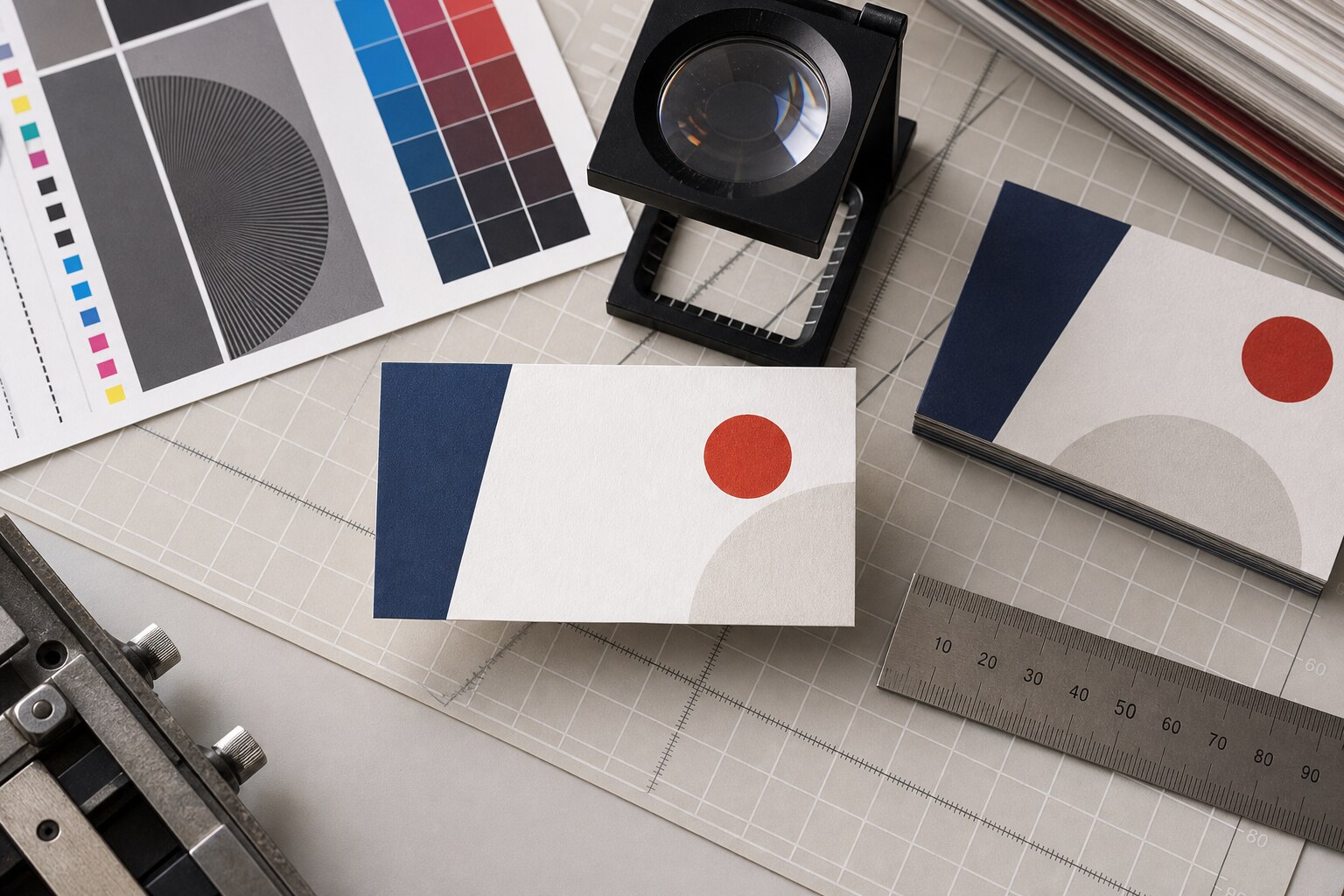
A physical-size test reveals problems that zooming into a screen can conceal.
PRINT AT 100% SCALE
Test legibility—not final colour accuracy.
Print the design yourself at its actual size before sending it to a printing company. This is a practical test of scale: can a human read the contact information without magnification, is the hierarchy clear and does the genuine QR code scan from paper?
A home or office printer is not a contract colour proof. Its inks, paper and colour management differ from the production process. Use the print to catch size, contrast and usability problems—not to approve an exact colour match.
QR check: generate the real destination code separately, preserve its quiet zone—the clear blank border around the code—and test it from the printed proof with more than one phone when practical.
BEFORE YOU UPLOAD
A seven-point preflight.
- Size: the document and finished dimensions are correct.
- Safe area: essential information remains at least 3 mm from trim.
- Bleed: every edge-to-edge element extends 1.5 mm beyond trim.
- Resolution: raster artwork is 300 ppi at output size.
- Content: names, numbers, URLs and spelling match the supplied facts.
- Assets: the real logo and a genuine QR code replace AI placeholders.
- Physical test: the card is readable and usable when printed at 100% scale.
COMMON QUESTIONS
What “print-ready” really means.
Can AI generate a print-ready business card?
Sometimes, for a straightforward full-colour design—but only if the tool can produce the required size, resolution and export without corrupting the content.
Can I supply a PNG or JPEG?
A correctly sized, high-resolution raster may be usable. Vector text and logos remain easier to inspect and adjust, so the file still requires preflight.
Does a home print prove the colours?
No. It checks physical size, readability, contrast and QR behaviour. Production colour depends on the process, paper, profile and proofing route.
WHEN THE CARD USES SPECIALIST FINISHES
Foil and letterpress need more than a realistic preview.
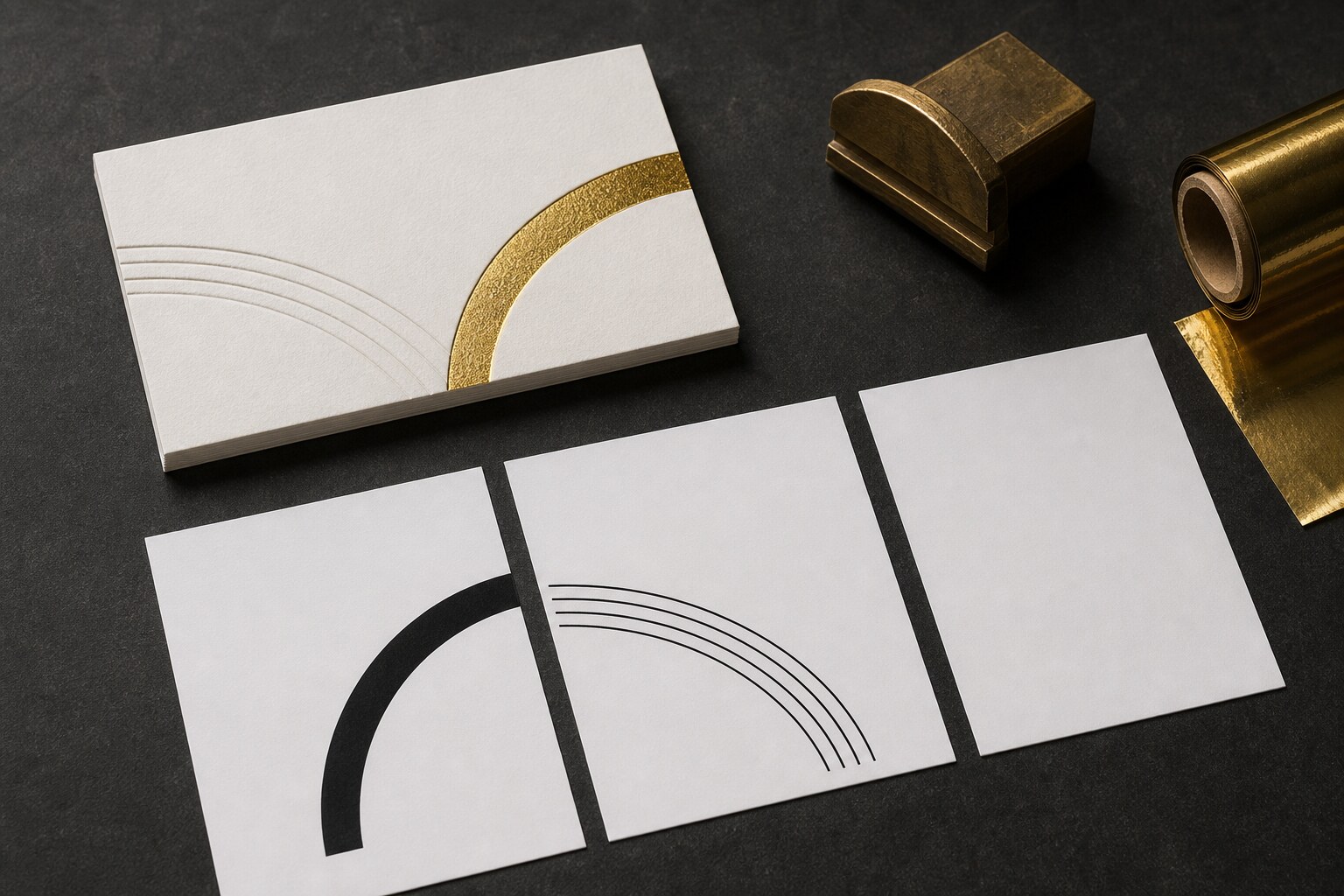
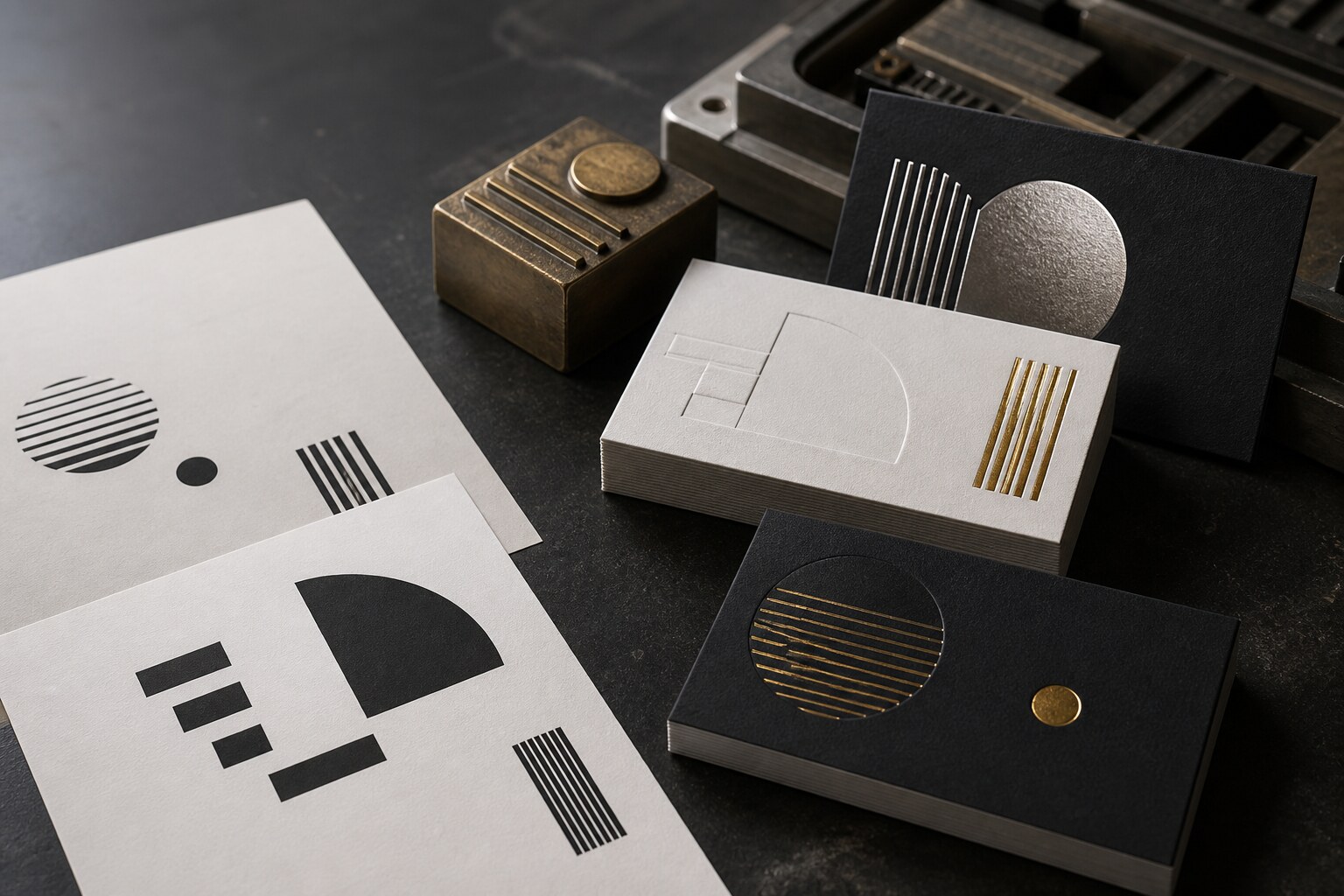
Use the companion guide to turn an AI concept into a useful brief for hot foil, letterpress and blind impression—without confusing the mockup with production artwork.